
Connect Rock POS to a receipt printer.
There are 2 ways to print receipts: print as a PDF file or use QZ Tray.

1. Receipt is printed as a PDF file
A downloadable PDF file is exported, allows you to print any time by any printer.
2. Receipt is printed by QZ Tray
With the help of QZ Tray, your receipts are printed instantly after each transaction. But first of all, you should check the compatibility between your printer and QZ Tray at https://demo.qz.io/. If your printer returns a receipt as it’s supposed, it works well with RockPOS, too.
The section below will show you steps to get receipt printers ready:
2.1 Download and install QZ Tray
2.2 Launch QZ Tray
2.1 Download and install QZ Tray
QZ Tray is a must-have plugin for printing receipts from RockPOS. IT is a premium software and we’ve already paid for its license so all you have to do is download and install it like normal. It’s ready to use at once.
2.2 Launch QZ Tray
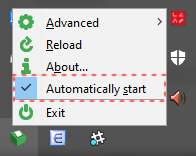
You need to launch QZ Tray before printing out receipts. To launch QZ Tray, simply double click on its icon. If it’s green, it’s ready to use. In case you forget to enable it, the option “Automatically start” is useful for you to set QZ Tray automatically run after you turn on your computer.
- Right click on QZ Tray icon
- Tick Automatically start
3. Connect RockPOS to a receipt printer
RockPOS will work smoothly with your printer if your computer can recognise the printer. So make sure that your printer works well.
4. Check if receipt is printed correctly
You can check how receipt is printed out by following these steps:
- Locate RockPOS > Manage > Setup > Receipt
- Select a method to print: QZ Tray or PDF.

If using QZ Tray:
- Enable QZ Tray
- Select QZ Tray
- Click Continue if QZ Tray is ready.
- Here comes receipt setup. Click Continue to skip it for now as one default receipt is already available for you.
- At Step 3 – Template, you will see the default receipt where you can print out. Click Print button at the bottom right of the page to check if the receipt is printed out correctly.
If you would like to have a PDF file:
- Select PDF
- Click Continue to skip the receipt set up
- Click “Print” button Print the receipt sample at the Step 3 – Template.

That’s all to connect RockPOS to a receipt printer.