
How can we help?
-
Getting Started
-
- Articles coming soon
- "Custom sale" feature - products that not yet added in Back Office
- Add notes to product
- Commissions setup
- Configure settings for multi-store
- Connect Rock POS to a receipt printer.
- Connect RockPOS with multi-warehouses
- Customer configurations
- Customer loyalty and RockPOS
- Customizable products in RockPOS
- Display tax in shopping cart
- Download and install RockPOS
- Edit payment methods
- Employees' check-in/check-out
- First time setup
- Getting started with RockPOS
- Helpful receipt settings - new in version 4.2.3
- How to complete a pre-order on the Sell page?
- How to contact us?
- How to create a payment method?
- How to display the creation date of an order on receipts?
- How to set up permissions for our employees?
- How to set up the length for product names on the Sell page?
- How to set up to print receipts?
- Index products
- Make the first order with RockPOS
- May I customize payment methods?
- Order configurations
- Payments setup
- Permissions setup
- Print receipt with Google Cloud Print
- Products setup
- Putting orders on hold
- Rock POS and payment gateway setup.
- RockPOS and payment methods
- Scan product barcodes
- Select order's states for out-of-stock products
- Set up product visibility for sale
- Share your data with us
- Show customer's email in receipt
- Show product's image in the search list
- Show product's image in the search list
- Update Rock POS
- Updates and Support Plans
- Upgrade to versions 4.x
- What types of receipt printers does RockPOS support?
- What's new in version 4.2.3?
- What's new in version 4.2.4?
- What’s new in Rock POS version 4.2.1?
- What’s new in RockPOS version 4.2.0?
- Show All Articles ( 34 ) Collapse Articles
-
-
FAQs
- Can Rock POS work with a cash register?
- Do we need to pay for a QZ Tray license?
- Does RockPOS support multi-currencies?
- Does RockPOS support to manage multi-stores?
- How many RockPOS do we need if we have multi-stores?
- How to create a payment method?
- How to limit employees from accessing the Manage page?
- How to not allow our employees to change product price?
- How to set up a default shipping method?
- Is RockPOS compatible with NF525?
- May our customers use their loyalty points to purchase in POS?
- Stop sending alerts with module "Mail alerts"
- What is the printer icon in the Sell page for?
- What PrestaShop versions does RockPOS work with?
- Where could I buy RockPOS?
- Which countries is RockPOS available in?
- Which devices can RockPOS work on?
- Which feature allows us to hold an order?
- Which types of the barcode scanner can I use to scan?
- Why does the message "You have 0 day(s) trial" still show up though I installed the paid package?
- Show All Articles ( 5 ) Collapse Articles
-
Other
< All Topics
Print
Select order’s states for out-of-stock products
Posted
Updated
ByQuang
From the version 4.2.0, users can select order’s states for the order that contains out-of-stock products.
Please follow these steps for setup:
- From PrestaShop back office, go to RockPOS > Manage
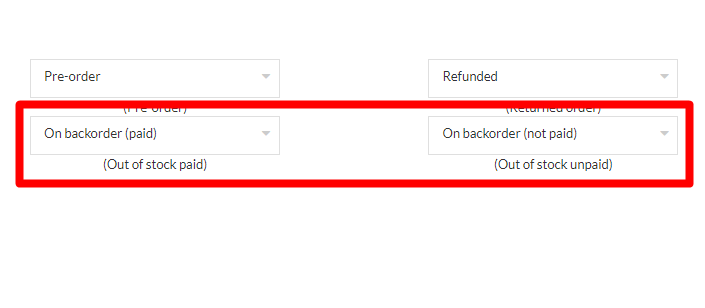
- Locate to Setup > Orders
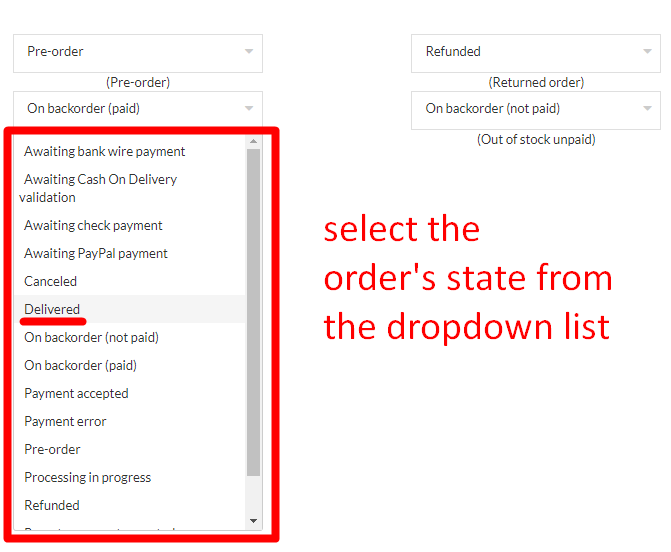
- “Out of stock paid” or ”Out of stock unpaid”
- Select an order’s state from the dropdown list of “Out of stock paid” or ”Out of stock unpaid”.

Note: the total of this order will not be summarized in the Sales report as they are considered as invalid orders. To summarize the total in the Sales Report, in the Back Office, locate to Shop Parameters > Order Settings > Statues and check the first checkbox ”Consider the associated order as valid”.

Table of Contents